
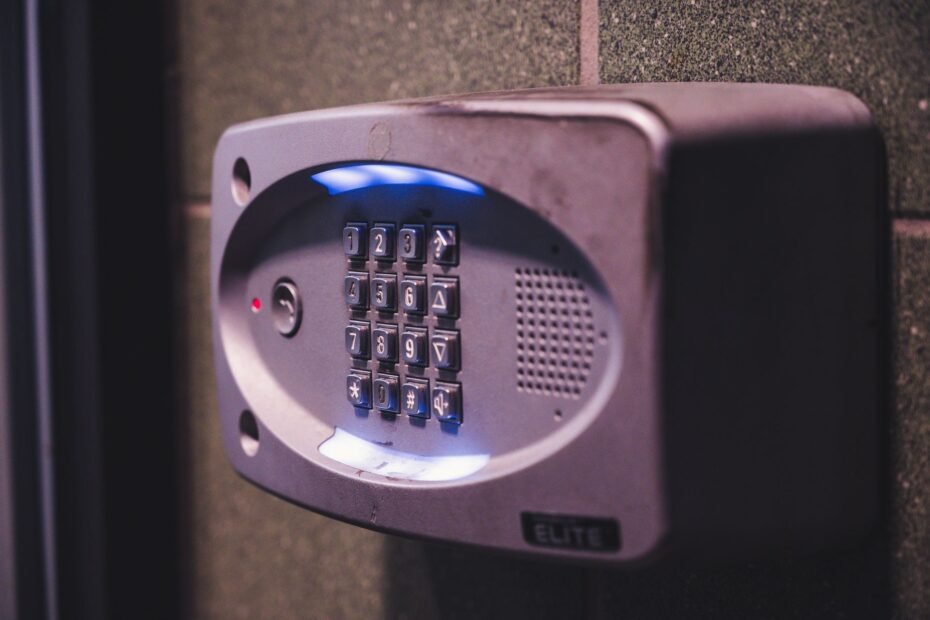
A keypad, app, Bluetooth signal, or motor command may be ignored when low battery power, a connection fault, software trouble, or a binding deadbolt disrupts operation. Protect your entry point, avoid force, and identify the controls that still move the bolt.
This practical walkthrough helps you separate power, connectivity, and mechanical faults before you erase codes or disturb your smart-home settings.
Start With the Functions That Still Work
A physical key or interior thumbturn gives you the clearest starting point. Close the door where possible, then see whether the bolt has pressure against the door strike plate. A bolt pressed hard into its opening can make an electronic lock appear unresponsive.
Your safest order is mechanical key, interior thumbturn, keypad, nearby Bluetooth control, then remote app control. That sequence separates a local lock fault from a phone or network fault before you change settings. Keep the door closed and secured during these checks.
Local controls reveal the failure type
| What responds | Likely fault area | Your next move |
|---|---|---|
| Nothing, including keypad lights | Dead batteries, loose battery contacts, or hardware failure | Use your emergency physical key or interior thumbturn, then inspect battery power. |
| Physical key and thumbturn only | Power, keypad, or electronics problem | Replace all batteries and inspect the battery tray. |
| Keypad works, app fails | Phone, Bluetooth connectivity, smart home hub, or Wi-Fi issue | Enter your keypad code, then isolate the mobile lock app connection. |
| Nearby phone control works, remote control fails | Wi-Fi bridge, Wi-Fi router, hub, or internet connection | Inspect the home network and smart home hub. |
| Motor clicks or bolt stops midway | Door alignment or bolt mechanism friction | Stop repeated commands and test bolt movement by hand. |
A keypad that lights up and accepts a code confirms that power reaches part of the lock. A working thumbturn confirms that the bolt can move under hand pressure. Those two details narrow electronic door lock troubleshooting far faster than changing app settings at random.
Repeated remote commands against a stuck bolt drain batteries and heat the motor. Stop after one failed attempt that produces clicking, grinding, or partial movement.
Power Failures Show Up Before Complete Shutdown
Dim keypad numbers and a slow motor point toward fading power. Your smart lock not working can begin with weak Bluetooth range or missed app status updates while the keypad still opens the door. Motors, radios, and touchscreen controls pull power in different bursts.
Battery strength matters most during a lock cycle. A battery pack can light the keypad yet lack enough power for the motor to move a bolt against door pressure. That split symptom explains why your lock can appear alive but fail to lock or unlock.
Battery symptoms need a complete replacement
Dead batteries are not the only power problem. Mixed old and new cells can sag under motor load, while one reversed battery can stop the entire circuit. Leaking cells leave residue that interrupts current at the metal contacts.
- Match every cell. Put in a full set of fresh batteries with the chemistry named in your lock documentation.
- Follow polarity marks. Match every plus and minus symbol inside the tray before closing the cover.
- Inspect metal contacts. Look for white crust, green residue, bent springs, or a contact pushed flat.
- Seat the battery pack. Press the tray fully into place so vibration cannot interrupt power during motor movement.
- Watch the lock cycle. Bright lights and a full motor cycle point to restored battery power.
Remove the batteries for about 30 seconds, reinstall them, and try the keypad and thumbturn before reopening the app. That battery power-cycle can clear a stalled radio or temporary software state without erasing access codes or home settings.
Remote control can fail ahead of local entry
August, Yale, Schlage, and Kwikset locks differ in hardware, yet app communication can drop while local entry remains available. Your keypad code needs a short local action, while a remote request depends on a phone, network path, hub, bridge, or cloud account.
Strong local operation after fresh cells shifts your attention toward Bluetooth connectivity, the Wi-Fi router, or the smart home hub. A dark keypad and silent motor point back toward the battery pack, contacts, or internal electronics.
App and Network Faults Leave Local Entry Intact
A working keypad narrows the fault sharply because the door hardware still has power. Your next task is tracing the signal path from phone to lock. Bluetooth works at close range, while remote control travels through Wi-Fi connectivity, a bridge, or a smart home hub.
Stand near the door for the Bluetooth check. Nearby phone control with no remote control points toward the Wi-Fi path rather than the deadbolt. That distinction keeps you from resetting a lock whose mechanical and local controls already work.
Bluetooth and remote control fail in different places
| Control path | What failure looks like | What your result means |
|---|---|---|
| Bluetooth near the door | Your phone cannot find the lock from a few feet away | Review phone Bluetooth, app permissions, lock power, and account status. |
| Wi-Fi bridge or built-in Wi-Fi | Local control works but remote commands fail | Inspect router power, network name, password, and bridge status. |
| Z-Wave hub | Lock is absent from the home dashboard | Inspect the hub before removing the lock from its network. |
| Matter or Apple HomeKit | Automation fails while the brand app works | Repair the home platform connection rather than the lock hardware. |
A frozen mobile lock app can block control even with a healthy lock. Close the app fully, reopen it, confirm your account sign-in, and review Bluetooth and local-network permissions. An outdated app or phone operating system can interrupt the connection handshake.
Router changes break saved lock paths
A new Wi-Fi router name or password leaves a Wi-Fi lock searching for the former network. Band changes matter too, since some lock bridges use 2.4 GHz Wi-Fi rather than 5 GHz. Level Lock models that rely on Bluetooth can remain accessible nearby during that outage.
Example: your Yale keypad accepts a code at the door, yet a family member cannot send a remote command from work. The lock hardware is functioning; the break sits between its bridge, router, hub, or cloud account. Reconnect that service after local controls prove that the motor works.
Smart lock app not connecting symptoms also follow this pattern. Phone access near the door points toward Bluetooth permissions or the app, while remote-only failure points toward Wi-Fi connectivity or the smart home hub.
Electronic symptoms can still originate at the door, because resistance increases the load the motor must overcome.
A Binding Deadbolt Can Mimic an Electronic Failure
Clicking followed by a lock error points to resistance as much as power loss. The motor has a small gear train, not the leverage of your hand. A bolt that rubs the door strike plate can leave your smart door lock not responding to every electronic command.
Deadbolt alignment changes as doors shift. Wood can swell during humid weather, paint can narrow the frame opening, and loose hinges can pull the latch side downward by a few millimeters. That small movement can stop a motor-driven bolt midway.
Open-door movement separates motor trouble from alignment
Turn the interior thumbturn with the door open, then repeat with the door closed. Smooth travel in open air and resistance at the closed door points toward alignment rather than an app setting. Your lock is pushing the bolt toward an opening that no longer lines up.
Use gentle hand pressure on the door while turning the thumbturn. A bolt that moves only while you pull, push, or lift the door points to hinge movement, weather swelling, or strike-plate position. Do not force the thumbturn through heavy resistance.
Avoiding force preserves the lock and door long enough to use intended emergency access options.
Friction leaves visible clues
- Find fresh scratches. Bright rub marks on the bolt or strike plate show where metal is dragging.
- Tighten hinge screws. Loose screws let the door sag away from the frame and shift the bolt path.
- Inspect strike clearance. Paint buildup, splinters, or debris can narrow the opening needed for full bolt travel.
- Inspect weather seals. A swollen or compressed seal can push the door sideways under closing pressure.
- Stop motor retries. Repeated strain can flatten batteries and wear internal gears before the alignment fault is fixed.
Do not force the thumbturn or widen the strike opening blindly. Find the rubbing point before changing the strike plate or door frame.
Built-In Backup Methods Restore Entry
Mechanical entry takes priority after you separate electronics from bolt movement. Use your emergency physical key or interior thumbturn where available, then keep the door secured while you trace the cause. A concealed key cylinder remains part of many keypad and touchscreen lock designs.
Your backup method varies by model. Some locks have a keyway beneath a sliding cover, while others rely on external battery contacts or a USB emergency-power port. Read the model manual before using any exterior power feature.
Emergency power features vary by model
Some Schlage and Yale models have external 9V contacts that temporarily power the keypad. Other designs use a USB emergency-power port. Those features can supply enough power to enter your keypad code, but they do not restore drained batteries inside the door.
Place a 9V battery only against the terminals shown in your lock documentation. Your lock needs the correct contact position and battery orientation. Never probe openings with wire, foil, or tools because a short can damage the electronics.
Property rules shape your next move
Renters should contact the property manager or designated maintenance channel before changing mounting screws, removing the interior assembly, or resetting account ownership. Managed access systems can link your unit to building credentials that a factory reset removes.
Call the manufacturer’s help line, building management, or a locksmith for visible damage, a failed manual key override, a door that cannot stay secured, or a lockout involving safety concerns. Your priority is a secured door, not a successful app repair.
Recovery Actions Have Different Consequences
Fresh batteries and smooth bolt travel set a clear boundary for software work. A power-cycle, app reconnection, network re-pairing, and factory reset are separate actions with different results. Your smart door lock not responding does not call for the most disruptive action right away.
Start with the action that changes the least. Removing batteries briefly preserves access data, while a factory reset can erase codes, guest access, wireless pairing, and smart-home integrations. Your manual entry method should work before any reset.
Each recovery action has a different scope
- Battery power-cycle. Remove batteries briefly to clear a stalled radio or temporary software state without erasing access data.
- App reconnection. Sign back in, grant permissions, and restart phone Bluetooth after local operation remains normal.
- Network re-pairing. Rejoin Wi-Fi, Z-Wave, Matter, or Apple HomeKit after a router, hub, or integration change.
- Factory reset. Erase lock programming and rebuild ownership, codes, wireless pairing, and automations from scratch.
- Hardware service. Seek repair after motor strain, dead keypad zones, or unpredictable bolt movement continues.
How to reset a smart door lock depends on the model, but a factory reset nearly always removes user codes, guest access, network pairing, and automation settings. Record account recovery details and confirm your backup entry method before taking that step.
Reliable operation needs a small routine
Test your backup key or emergency-power method while the lock is working. Run firmware updates while local access remains available because a phone interruption during maintenance leaves fewer recovery choices. Store account recovery details in a secure location away from the door.
Inspect battery contacts and deadbolt alignment during seasonal shifts, after paint work, after new weather stripping, or after a Wi-Fi router swap. That routine catches the faults that turn a warning tone into an access emergency.
A successful recovery is incomplete until routine checks confirm both reliable entry and a secure latch.
Final Checks Protect Access and Security
The safest path starts with what your lock can still do. Your key, thumbturn, keypad, nearby Bluetooth connection, and remote app form a diagnostic ladder. Each working layer rules out part of the fault.
Preserve entry and door security, stop a straining motor, then move from batteries to network repair before a factory reset. That order protects your codes, integrations, and access options while you narrow the source of the failure.
FAQ
Why is my smart door lock not responding to the keypad, app, or voice assistant?
A lock that ignores every control points toward battery loss, battery-contact trouble, internal electronics, or a binding deadbolt. Your emergency physical key or thumbturn can separate a complete lock failure from an app, keypad, or smart-home command fault.
How do I know whether my smart lock batteries are dead or the lock has another problem?
Dark keypad controls, weak lights, slow motor movement, and lost Bluetooth range point toward fading batteries. Bright keypad lights with clicking or partial bolt travel point toward deadbolt alignment, door strike plate friction, or motor strain instead.
Why does my smart lock work manually but not through Wi-Fi or Bluetooth?
A working key and thumbturn show that the bolt still moves mechanically. Nearby Bluetooth failure points toward phone settings, permissions, battery power, or the mobile lock app. Remote-only failure points toward the Wi-Fi router, bridge, smart home hub, or saved network details.
What should I do if my smart lock is jammed and will not lock or unlock?
Stop repeated commands and avoid forcing the thumbturn because strain can drain batteries and damage gears. Test bolt travel with the door open, then inspect the strike plate, hinge screws, weather seal, and bolt opening for friction.
How can I unlock a smart door lock when the battery dies?
Your emergency physical key is the main backup on models with a concealed keyway. Some models also have external 9V contacts or a USB emergency-power port that can power the keypad briefly. Follow your model documentation for terminal location and battery orientation.
Will resetting my smart lock erase access codes, app settings, or smart home integrations?
A factory reset can erase access codes, guest permissions, mobile app ownership, Wi-Fi settings, Bluetooth pairing, and smart-home integrations. A battery power-cycle does not carry the same consequence, so try that smaller step after fresh batteries and local controls are working.