
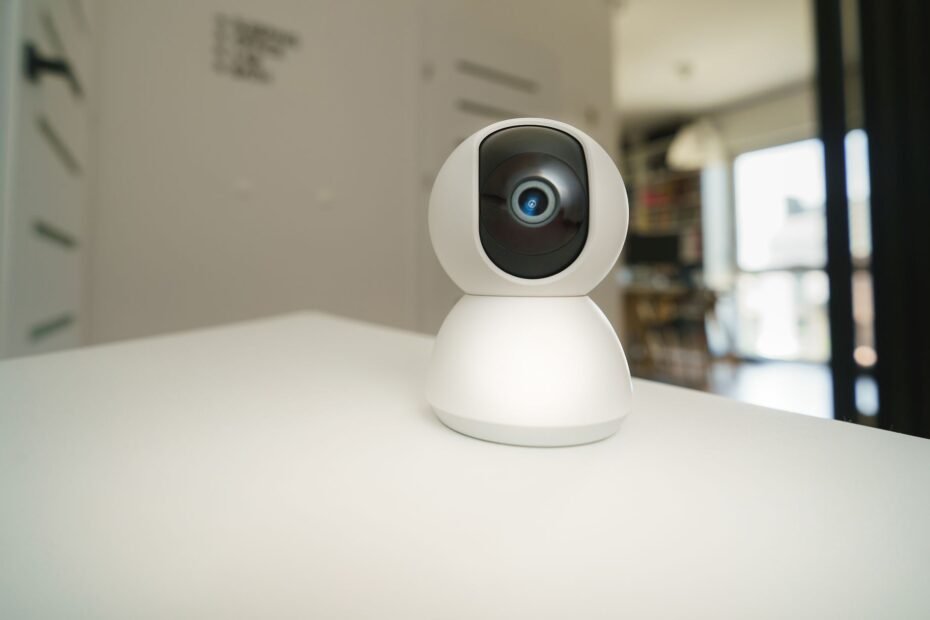
A working camera can still miss events when motion detection, clip saving, or alert delivery fails. Your app can send a porch alert after someone passes, yet no playable video appears because a mode, storage path, power limit, or upload connection stopped the clip.
This diagnostic path helps you isolate the failed stage, protect footage already stored, and restore dependable clips from wired, plugged-in, and battery-powered smart cameras.
The Detect, Record, Notify Failure Map
One walk-by can end in three different ways: no event, an event without video, or a saved clip without a phone alert. Your camera senses motion, stores video, and sends push notifications through separate system stages.
| Last working stage | What you see | Most likely area |
|---|---|---|
| Detection fails | You see no motion event in event history. | Check camera mode, activity zones, motion sensitivity, placement, lighting, or sensor limits. |
| Recording fails | You see an event, but no playable clip is available. | Check cloud storage subscription status, microSD card local storage, retention, upload, or recording settings. |
| Notification fails | You find a clip in history, but your phone stays silent. | Check push notifications, phone permissions, app settings, or focus modes. |
Event History Locates the Break
Open live view, confirm device status, then review event history after a controlled walk-by. A healthy camera shows a motion event and a saved clip after you cross the monitored area. Your phone alert proves notification delivery, but it does not prove that video storage worked.
For example, a Ring camera can send a motion alert while its clip fails to load because cloud upload stalled. On Blink, Arlo, Google Nest, Eufy Security, and Wyze cameras, menu labels differ, yet the same three-stage path helps you isolate the fault.
Alerts Without Clips Point to Storage
Motion alerts working but camera not recording points to a fault after detection. Start with recording retention, cloud access, and local storage before raising motion sensitivity. That sequence keeps a swaying tree from turning into repeated alerts without solving your missing clip.
A security camera motion detection not working issue looks different because no event reaches history after a clear walk-by. That result directs your attention toward modes, zones, sensor position, and lighting conditions.
Settings That Quietly Suppress Motion Recording
Modes and rules sit above sensitivity, so an armed camera can still ignore the exact section of driveway where a package arrives. Review those controls before adjusting the sensor itself, because a correct sensitivity setting cannot override privacy mode or a recording schedule.
Camera Modes and Schedules Override Normal Behavior
Open device settings and confirm that motion recording is active in your current mode. Privacy mode, sleep mode, disarmed status, Home mode, and a recording schedule can leave live view available while stopping saved clips.
- Armed state Confirm that your active mode permits motion events and recording rather than live viewing alone.
- Recording schedule Review every time block, including overnight periods, weekday rules, and custom start times.
- Activity zones Draw activity zones across the route used by your visitor, vehicle, or package carrier.
- Exclusion zones Remove masked areas that overlap a gate, sidewalk, driveway entrance, or front path.
- Smart home automations Review smart home automations that change camera modes at set times or after another device triggers.
Before changing a camera mode, take screenshots of your zones, schedules, alert rules, and storage settings. Your record makes a later reset less disruptive and gives you a clear setup reference.
Filters Can Discard Valid Motion
Person, vehicle, package, and pet filters cut down unwanted events, yet they also narrow the clips your camera retains. A camera aimed across a street can see a bicycle, small dog, or delivery cart as movement without matching the category selected in your app.
Low motion sensitivity misses distant, slow, small, or low-contrast subjects. High sensitivity captures shadows, rain, insects near the lens, headlights, and branches. Set sensitivity around your real travel route rather than the largest area visible in live view.
Storage, Connectivity, and Power Requirements
A detected event needs a storage destination before it becomes a clip you can play. Your camera can sense movement at the door while weak Wi-Fi signal strength blocks the cloud upload that should preserve the footage.
Cloud Retention and Local Cards Have Different Failure Signs
| Storage path | Failure sign | Your next check |
|---|---|---|
| Cloud storage | You see events, but clips show as unavailable or never finish loading. | Check plan status, camera assignment, retention rules, and Wi-Fi signal strength. |
| microSD card | Your local playback stops or recordings end abruptly. | Check card capacity, health, format, compatibility, and camera card status. |
| Base station | Your camera is online, but base storage reports an error. | Check base power, available space, and camera-to-base connection. |
| Continuous recording | You see gaps in the timeline despite camera power. | Check plan access, network stability, and continuous-recording settings. |
Some cameras need a cloud storage subscription or enabled local storage before a motion event becomes playable video. An expired plan, a plan assigned to another camera, or a retention limit can answer why is my camera not saving motion events even though detection still works.
Local cards can fail without an alert. A full, damaged, unsupported, corrupted, or incorrectly formatted microSD card can stop recording. Use the format tool inside your camera app where available, and download clips before removing or formatting the card.
Some brands require a vendor-specific card type, local hub, base station, or a continuous-recording plan. Your camera menu should identify the active recording destination, card status, and available retention period. A visible event with no playback usually points to that destination rather than the motion sensor.
Power Limits Shape Repeated Events
Battery-powered smart cameras preserve runtime through cooldown periods and battery-saver rules. Your camera can capture someone approaching the door, then skip another pass shortly afterward while its cooldown remains active.
Cold weather reduces battery charge and can slow battery output. Check your charge level, power connections, and outage history before blaming Wi-Fi. A plugged-in camera with an unstable adapter can restart between events and appear normal again during live view.
Once power and connectivity are stable, a repeatable walk-by test separates a detection gap from an intermittent fault.
Do not format local storage until you have copied footage that matters to you. Formatting clears the card and removes the clearest record of what your camera captured.
A Controlled Test Reveals Detection Performance
A controlled walk-by removes confusion from passing cars, rain, and shifting sunlight. Use the same route after every setting change, then compare event history with the saved clip. Your results stay useful only when the route, distance, and direction stay consistent.
Crossing Motion Gives PIR Sensors a Better Target
Walk across the field of view about 10 to 20 feet from your camera rather than directly toward the lens. Passive infrared, or PIR, sensors react more reliably to movement that crosses sensing bands than movement that approaches head-on.
Give a battery camera time to wake after a restart, then wait through its event cooldown before repeating the route. Your test counts after the camera returns to its armed state and finishes saving the prior event.
Run one daylight test and one infrared night test. A camera that records you in daylight but misses you after dark points toward infrared glare, lens reflection, placement, or a weak battery rather than an activity-zone problem.
Daylight and Night Expose Placement Faults
Bright backlighting can turn a person into a dark outline, while infrared light can bounce off a nearby wall, soffit, window, or glass storm door. That reflected light washes out the scene and can leave your camera online without a useful motion clip.
For example, a camera mounted behind a window can work in daylight but capture a pale reflection at night. Clean your lens with a dry microfiber cloth, move the camera away from glass, and aim it across the route instead of down a long straight path.
Mounting height matters too. A lens set too high can show heads and cars while missing a package near the threshold. Your view also fails where a steep downward angle places a visitor outside the motion zone before recording starts.
Observed blind spots and delayed clips identify which adjustments can improve coverage without introducing new reliability risks.
Restoring Reliable Motion Recording Safely
Small changes reveal more than a factory reset because each result narrows the cause. Change one setting, repeat the same walk-by, and inspect fresh event history before touching another control. This smart camera motion recording troubleshooting order protects footage while preserving useful clues.
One Change at a Time Preserves the Clue
- Save key clips Download footage tied to a delivery, visitor, theft, or safety concern before disruptive work starts.
- Record settings Capture screenshots of modes, zones, sensitivity, schedules, storage status, and smart home automations.
- Adjust one control Widen a zone, raise sensitivity slightly, reconnect Wi-Fi, or format supported storage through your app.
- Repeat one route Cross the same area after each change and review both event history and clip playback.
- Restart both ends Restart your camera and phone app, then allow the device to reconnect fully.
Camera firmware updates can correct known recording faults or connection behavior, but an update also restarts the device. Run your controlled route after the update rather than assuming that prior settings resumed correctly.
Fresh Events Separate Configuration From Device Faults
New clips after a zone or schedule adjustment point to configuration. Repeated detection without playable video points toward storage or upload. No event after a clean cross-field walk points back to placement, power limits, sensor limits, or hardware.
How to enable motion recording on a security camera varies by brand, yet the setting commonly sits under Device Settings, Modes, Motion, or Recording. Confirm both the motion toggle and clip-retention destination, since either control can stop saved video.
Long motion events can also split into separate clips on battery cameras. Your camera can capture the approach, pause during cooldown, then miss part of a longer delivery or vehicle stop. That behavior differs from a storage fault because at least one playable clip reaches history.
The Point for Re-Pairing or Replacement
A camera that stays online but ignores known-good settings has moved beyond routine adjustment. Re-pairing can clear device-specific setup and disconnect automations, so reserve it for a fault that remains after the earlier checks.
Resets Belong Near the End
Remove and re-pair your device after reviewing modes, zones, cloud status, card health, battery level, and Wi-Fi signal strength. Your screenshots shorten the rebuild and reduce the chance that motion recording stays disabled after setup.
A factory reset suits a camera that responds unpredictably despite a stable connection, current firmware, and a controlled walk-by. Because it erases local configuration, download your clips and write down recording settings before starting the reset.
Hardware Symptoms Deserve Escalation
- Repeated disconnects Contact the manufacturer where stable Wi-Fi still produces recurring offline periods for your camera.
- Rejected storage Escalate where compatible, correctly formatted cards fail across repeated insertions.
- Broken night video Seek service where infrared glare remains after lens cleaning and repositioning.
- Failed walk-bys Replace a unit that misses controlled cross-field motion in daylight and darkness after resets.
A smart camera not recording motion after those steps can have a failing sensor, card slot, antenna, battery circuit, or internal memory. Replacement makes more sense for you than repeated resets that erase evidence without changing the result.
Putting the Results Into One Next Step
Start with the last stage that works rather than the symptom that feels most alarming. An event log without video directs you to retention, storage, power, or upload. No event directs you to sensing and placement, while a saved clip without a phone buzz directs you to push notifications.
Your controlled walk-by turns that map into a clear next action. A repeatable route across the field of view gives you evidence that a mode, zone, card, connection, or camera component changed the result.
FAQ
Why is my smart camera detecting motion but not recording?
Your camera completed detection but failed during clip retention or upload. Confirm that recording is active in your current mode, then review cloud-plan access or local-storage status. An event in history with no playable clip points away from sensitivity and toward storage, recording settings, or Wi-Fi upload.
Why are motion events missing from my camera history?
Missing events point to detection rather than notification delivery. Review privacy mode, armed status, activity zones, exclusion zones, motion sensitivity, and camera angle. A battery-powered camera can also skip close events during a cooldown or battery-saver period after repeated activity near your camera.
Does a smart camera need a subscription to record motion?
Some cameras retain motion clips only through a cloud storage subscription, while others store footage on a microSD card, base station, or local hub. Your camera can still send a live alert without retaining video. Check the recording destination in your app rather than assuming alerts include stored clips.
Can weak Wi-Fi stop a security camera from saving recordings?
After local motion sensing succeeds, a weak Wi-Fi connection can prevent cloud clips from uploading. Live view can still appear briefly, yet delayed or failed uploads can leave event history without playable video. Move the camera closer to your router, reduce obstructions, or inspect the base-station connection.
Why does my camera only record some motion events?
Partial capture can come from cooldown periods, restrictive zones, low sensitivity, subject filters, or poor motion direction. Cross-field movement gives your PIR sensor a stronger signal than a direct approach. Night glare, dirty lenses, and a high mounting position can also make your clips inconsistent at the same doorway.
How do you know whether detection or recording caused the problem?
Event history gives you the clearest dividing line. No event after a controlled walk-by points to detection, placement, mode, or power. An event without playable video points to recording, storage, retention, or upload, while a saved clip without a phone alert points to push notifications.