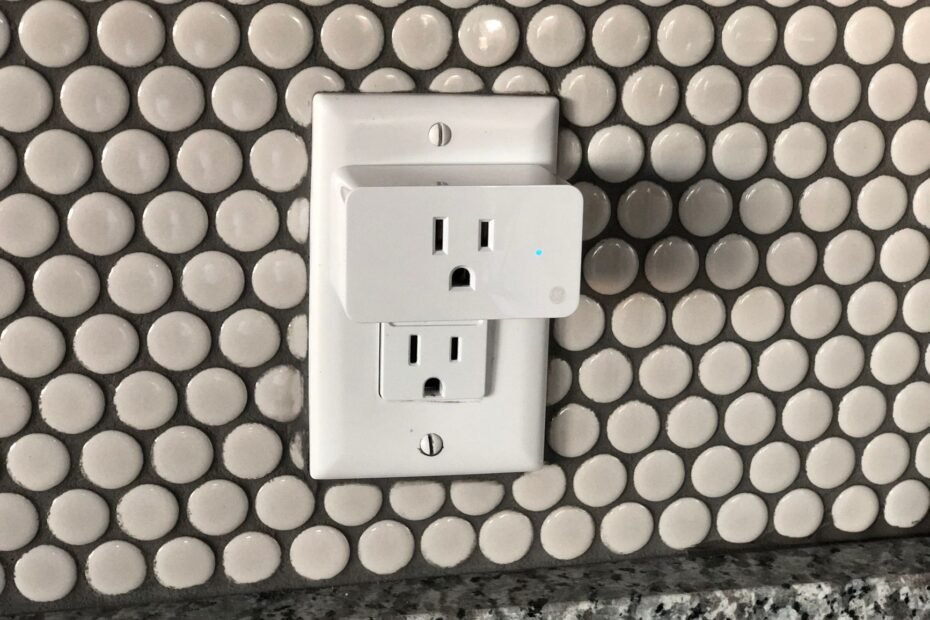
A dead outlet, dropped Wi-Fi connection, app sync error, or moisture damage can leave the plug unresponsive. Start with the LED and manual button because those signs separate a dead receptacle from a plug that still has power but cannot receive commands.
This walkthrough helps you sort electrical, network, app, voice-control, and weather faults in a practical order before you erase schedules or reconnect the device.
Separating Power Failures From Network Failures
Physical signs set the safest starting point
A lit status LED, a working manual button, and a lamp that switches on locally point away from a dead outlet. Your smart home app can show an offline status while the plug still has electrical power and can control equipment at the receptacle.
Press the manual button once and watch the connected device for several seconds. A lamp, string-light set, or small fountain should react promptly. No LED, no button response, and no device power suggest that your outdoor outlet has no power or that the plug has an electrical fault.
Do not touch, unplug, reset, or open a plug that is wet, hot, cracked, discolored, swollen, or giving off an odor. Turn off the circuit breaker and have a qualified electrician inspect the area.
Manual control and app control reveal different faults
A plug that works from its button but ignores the app still receives power. That result points to Wi-Fi, account access, cloud service status, or the smart home app rather than the receptacle. Your next step is proving that outlet power remains steady.
| What you observe | What it suggests | Your next step |
|---|---|---|
| No light and no manual response | Outlet power loss or plug failure | Inspect the GFCI outlet and circuit breaker |
| Manual button works, app says offline | Wi-Fi or account fault | Review network details and signal strength |
| App works, voice command fails | Voice-service sync fault | Refresh the linked smart-home account |
| Plug cycles off under load | Overload, heat, or moisture issue | Disconnect equipment and inspect safely |
That split matters because a factory reset cannot restore a tripped GFCI outlet or a loose wire. It also cannot repair corroded contacts. Your diagnosis starts with power because every app, network, and voice-control feature depends on it.
Outlet Power Problems That Make a Smart Plug Seem Dead
GFCI protection can shut down several outlets
Outdoor receptacles are commonly protected by a GFCI outlet, which cuts power after sensing current outside its intended path. A GFCI located in a garage, bathroom, basement, utility room, or exterior wall can control several receptacles. Your patio plug can lose power even though the tripped GFCI sits indoors.
Open the electrical panel and inspect for a tripped circuit breaker. Then locate nearby GFCI outlets and press RESET only after the area is dry and intact. A GFCI that refuses to reset, or a breaker that trips again, needs electrical diagnosis rather than repeated plug setup.
A known-working device isolates the receptacle
- Inspect the cover: Open the weatherproof outlet cover and look for moisture, corrosion, loose parts, or a damaged receptacle.
- Try a lamp: Plug in a known-working device suited to that receptacle and watch for power.
- Inspect the breaker: Reset a tripped circuit breaker fully by moving it off and then back on.
- Find upstream GFCIs: Reset nearby protected outlets after confirming that their surroundings are dry.
- Try an indoor outlet: Move a dry, undamaged plug to a known-working indoor outlet for a brief comparison.
Example: holiday lights go dark after a storm, and a garage receptacle also has no power. That pattern points to GFCI protection or the branch circuit, not the smart plug. Your plug should stay out of focus until another device proves the outdoor receptacle works.
A loose receptacle, flickering power, scorch marks, or repeated breaker trips are not app problems. Stop using that outlet. An electrician can locate a worn receptacle, damaged conductor, or moisture fault before the circuit sees more load.
For a sound, energized outlet, delayed or unavailable control usually points to the connection path instead.
Wi-Fi Conditions Behind Offline and Delayed Commands
The 2.4 GHz band is required by many plugs
Once the outlet passes the lamp comparison, the wireless link becomes the main suspect. Many outdoor smart plugs join only a 2.4 GHz Wi-Fi band. That band reaches farther through walls than 5 GHz, yet metal siding, brick, stucco mesh, and router distance still weaken the signal at your outlet.
A smart plug won’t connect to Wi-Fi on a 5 GHz-only network because its radio cannot detect that band. Your Wi-Fi router can use one network name for both bands, but band steering can confuse pairing mode. Separate 2.4 GHz and 5 GHz names temporarily to make the correct network visible.
| Network condition | Typical plug behavior | Useful correction |
|---|---|---|
| 2.4 GHz available near outlet | Stable pairing and faster app response | Keep the plug on that band |
| 5 GHz-only network | Pairing fails or the network is missing | Enable a 2.4 GHz network |
| Weak outdoor signal | Offline status or delayed commands | Improve coverage near the outlet |
| Guest network isolation | App cannot reach the device locally | Use the main home network |
Stored credentials fail after router changes
A router reboot, changed Wi-Fi name, new password, WPA3-only security setting, guest network, or mesh-network handoff can leave an outdoor smart plug offline. Stored credentials no longer match after a name or password change. Your plug stays powered but cannot rejoin the Wi-Fi network.
Inspect signal strength at the outlet rather than beside the router. A phone can show usable patio coverage while the plug’s smaller antenna struggles behind an exterior wall. Moving the Wi-Fi router, placing a mesh node nearer the exterior wall, or reducing solid barriers can steady commands.
Keep a mesh node indoors and dry. Outdoor coverage improves through placement, not by placing indoor networking equipment where rain and temperature swings can damage it.
Restoring Control Through the App and Google Home
The manufacturer app confirms plug status
App control must work before voice control can work. TP-Link Kasa and Smart Life use separate account links and cloud connections, while Google Home displays devices imported from those services. Your manufacturer app gives you the clearest indication that the plug itself is online.
Close the app fully, reopen it, and sign in again where prompted. Inspect for an app update and a firmware update for the plug. Firmware updates can address compatibility, security, and connectivity faults, though your plug needs steady power and Wi-Fi throughout the update.
Voice control needs a current account link
A device that switches in Kasa or Smart Life but ignores voice commands has a service-link fault. Refresh device discovery in Google Home, then remove and relink the related smart-home account. Your plug name and assigned home need to match the service receiving your command.
- Confirm app control: Turn the outlet on and off from the manufacturer app before changing voice settings.
- Refresh the account: Sign out and back into the smart home app to renew a stale session.
- Relink the service: Remove the linked account from Google Home and add it again.
- Run discovery: Refresh device discovery so Google Home imports the current device list.
- Inspect the home: Verify that your plug sits in the intended home and room, not an old duplicate.
Apple HomeKit and Matter can add another connection layer. A Matter bridge or HomeKit accessory that loses its home hub connection can show unavailable while the plug’s own app still works. Keep local app control working before changing broader home-automation settings.
Restarting and Rejoining the Plug After Basic Checks
A restart clears temporary connection faults
After outlet, Wi-Fi, and app checks, restart the plug before erasing settings. A power cycle clears temporary connection faults without removing schedules or device names. Your router and app also benefit from a restart because cloud sessions can stall after an internet outage.
- Turn off the load: Switch off connected equipment and unplug it from the smart plug.
- Power-cycle safely: Unplug the dry, undamaged plug for about 30 seconds and restore power.
- Restart the router: Restart the Wi-Fi router and wait for its normal internet connection.
- Reopen the app: Launch the manufacturer app and allow about one minute for status to refresh.
- Try local control: Press the manual button and send one app command after the status changes.
A factory reset removes the stored network link
A factory reset belongs near the end of the troubleshooting path, not at the start. It removes stored network credentials and can clear schedules, automations, names, and service links. Outdoor smart plug not responding after power, Wi-Fi, and app checks can justify a reset, provided the unit has confirmed power and no visible damage.
Write down schedules, automations, outlet names, and the intended 2.4 GHz Wi-Fi network before starting. Follow the model-specific button sequence because LED patterns differ by brand. Pairing mode should show a blinking indicator, after which your app can add the plug as a new device.
Example: a plug works from its manual button, but the app cannot find it after a router replacement. A factory reset removes the old network record, and pairing it with the current 2.4 GHz Wi-Fi network restores app control. A reset cannot repair a dead receptacle or corroded contacts.
When power and pairing checks fail to change the symptoms, environmental damage or electrical stress becomes the likelier explanation.
Weather Exposure, Overload, and Replacement Signs
Water enters through gaps and cord paths
Rain can reach an outdoor plug through a loose seal, a cover held open by a thick cord, or water pooling beneath the receptacle. A weatherproof outlet cover needs to close around the plug and cord. Your cord should hang below the connection in a drip loop that directs water away from the plug body.
Inspect the housing, seals, cord jacket, and receptacle area after rain. Green or white corrosion, water inside the cover, brittle insulation, and a loose outlet point to exposure damage. Outdoor smart plug not responding after rain should remain disconnected until the area is dry and visibly sound.
Heavy loads can overheat the switching relay
Smart plugs have amperage and wattage limits printed on the housing or manual. A pump, heater, compressor, or motor can draw a higher startup load than its running label suggests. Your plug can shut down, run hot, or fail early after a startup surge exceeds its switching capacity.
- Read the rating: Match the connected equipment’s amperage and wattage with the plug’s stated limits.
- Watch motor loads: Pumps, fans, and compressors draw a startup surge that stresses small relays.
- Skip damaged cords: Cracked insulation and pinched extension cords raise heat and moisture risks.
- Keep covers closed: Use an in-use weatherproof outlet cover that closes around the cord.
- Stop repeated outages: Disconnect the load after unexplained shutoffs rather than cycling the plug again.
Install a new plug rather than continue troubleshooting one with corrosion, melted plastic, discoloration, heat marks, cracked housing, or repeated outages in a known-good dry outlet. Hardware faults do not improve through resets. Your safest choice is a new outdoor-rated unit after the outlet and connected load receive inspection.
Final Takeaways
Sort the failure before erasing settings. A dead LED and button point toward outlet power, while local control with an offline app points toward Wi-Fi or account access. Your outdoor setup stays steadier with a dry weatherproof outlet cover, a load within the plug rating, stable 2.4 GHz coverage, and a reset reserved for a confirmed connection fault.
Outdoor smart plug not responding does not always mean the plug has failed. The manual button, a known-working lamp, the GFCI outlet, and the manufacturer app give you four separate clues. Those clues narrow the fault without exposing you to a wet electrical connection or needlessly erasing your setup.
FAQ
Why is my outdoor smart plug showing offline?
An offline status means the app cannot communicate with the plug through its Wi-Fi or cloud connection. Your plug can still have outlet power and work from its manual button. Inspect the 2.4 GHz Wi-Fi network, router status, stored password, signal strength at the outlet, and app sign-in before resetting it.
How do I reset an outdoor smart plug that is not responding?
Start with a safe power cycle, then restart the router and reopen the manufacturer app. A factory reset belongs after outlet power, Wi-Fi, and app checks show no fault. Your model manual lists the required button hold time and LED pattern because reset sequences differ between brands.
Why will my smart plug not join 2.4 GHz Wi-Fi?
A 5 GHz-only network, WPA3-only security, band steering, guest-network isolation, or weak signal can block pairing. Your phone can join the network while the plug cannot because its radio has different limits. Enable a 2.4 GHz band and pair near the router before moving the plug outdoors.
How can I tell whether my outdoor outlet or smart plug is the problem?
Use a known-working lamp or device at the outdoor receptacle after looking for wet or damaged parts. A device with no power points to the outlet, GFCI outlet, circuit breaker, or wiring. Your smart plug becomes the likely fault only after it fails in a known-good, dry indoor outlet.
What should I do when manual control works but Google Home does not?
Manual control proves that the plug has power, while manufacturer-app control proves that its Wi-Fi link works. Your remaining fault sits in the linked account or device discovery path. Relink the smart-home account in Google Home, refresh discovery, and inspect the assigned home and room.
Can a tripped GFCI outlet make a smart plug appear offline?
Yes. A tripped GFCI outlet removes power from the plug, so the app loses contact and displays it as unavailable. Your outdoor receptacle can share GFCI protection with a garage, bathroom, basement, or utility-room outlet. Reset only dry, undamaged equipment and contact an electrician after repeated trips.